
You built your website to welcome the right clients — the ones searching for exactly the kind of support you offer. But here’s the thing: if Google doesn’t know your site exists, those potential clients may never find their way to you.
That’s where Google Search Console comes in.
If you’ve been wondering why your website site isn’t showing up in search results — or you want to make sure it does — this guide will walk you through exactly what to do, step by step. No tech overwhelm, I promise!
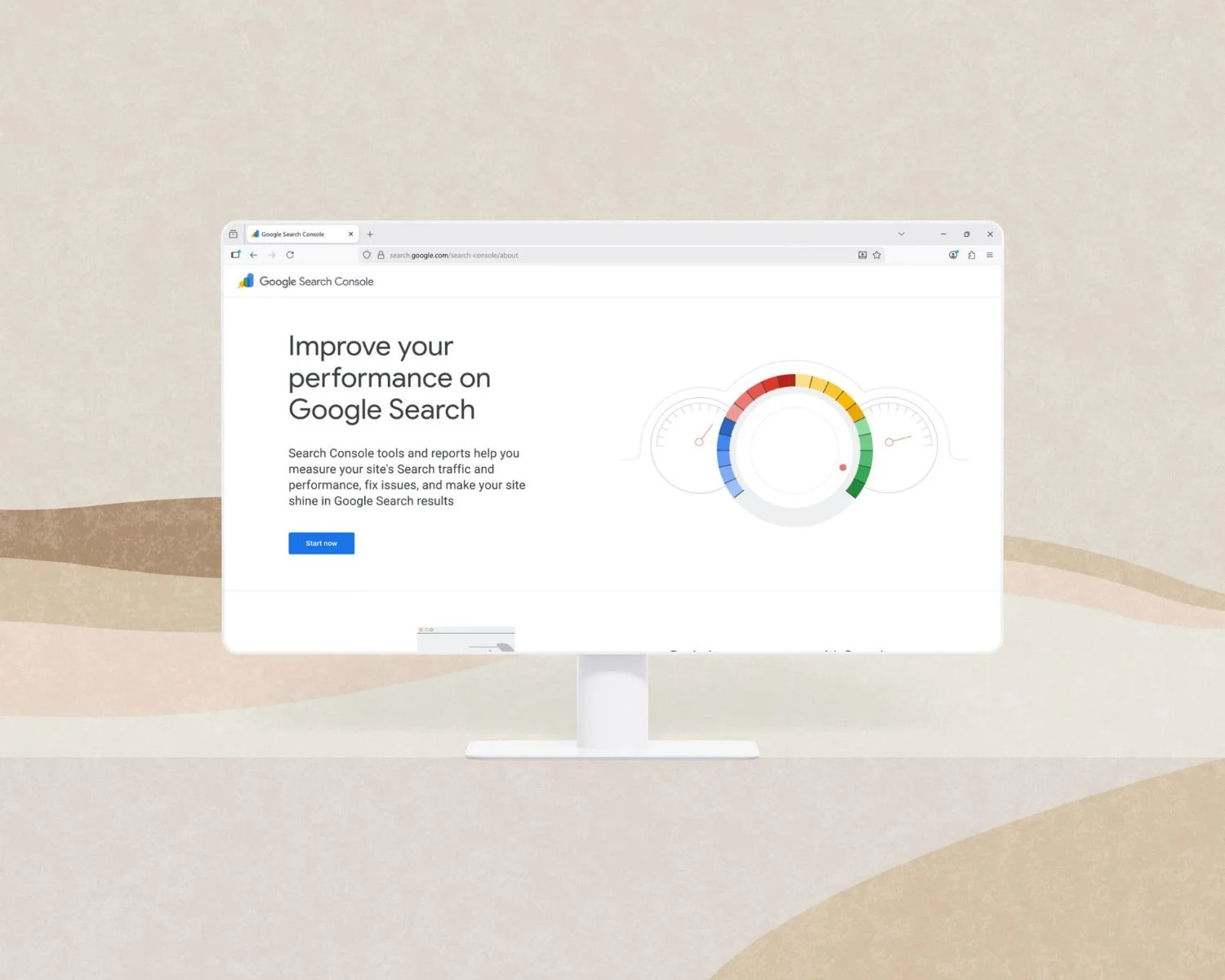
What Is Google Search Console?
Google Search Console is a free tool from Google that gives you a behind-the-scenes look at how your website performs in search.
With Search Console connected to your Squarespace site, you can:
See which search terms people are using to find you
Ask Google to index your site or newly added pages (do this every time you add a blog post or make a significant change to a page on your website)
Understand how visible your practice is to potential clients in your area
Catch any technical issues that might be quietly hurting your SEO
For therapists and wellness professionals building a practice, this kind of visibility gives you a grounded, sustainable way to attract clients who are genuinely looking for what you offer.
Before You Get Started: A Few Things to Check
Before connecting Search Console to your Squarespace site, take a moment to make sure a few things are in place. These small steps will save you a lot of confusion down the road.
Your site is live and published.
Trial sites are hidden from Google, so verification won’t work if your site is still in draft mode.There’s no site-wide or home page password enabled.
Passwords block Google from reading your content.Your custom domain is properly connected.
If you recently connected a new domain, wait about 48 hours before setting this up for best results.You have a Google Account.
You’ll need one to sign into Search Console.
Create A Google Search Console Account
You’ll need to log into your Google account. If you don’t already have one, you can create one here.
Open Search Console, then add and verify ownership of your site. You'll need to prove that you are the owner of your website.
Connect Google Search Console to your Squarespace website (don’t worry, Squarespace makes this process pretty painless).
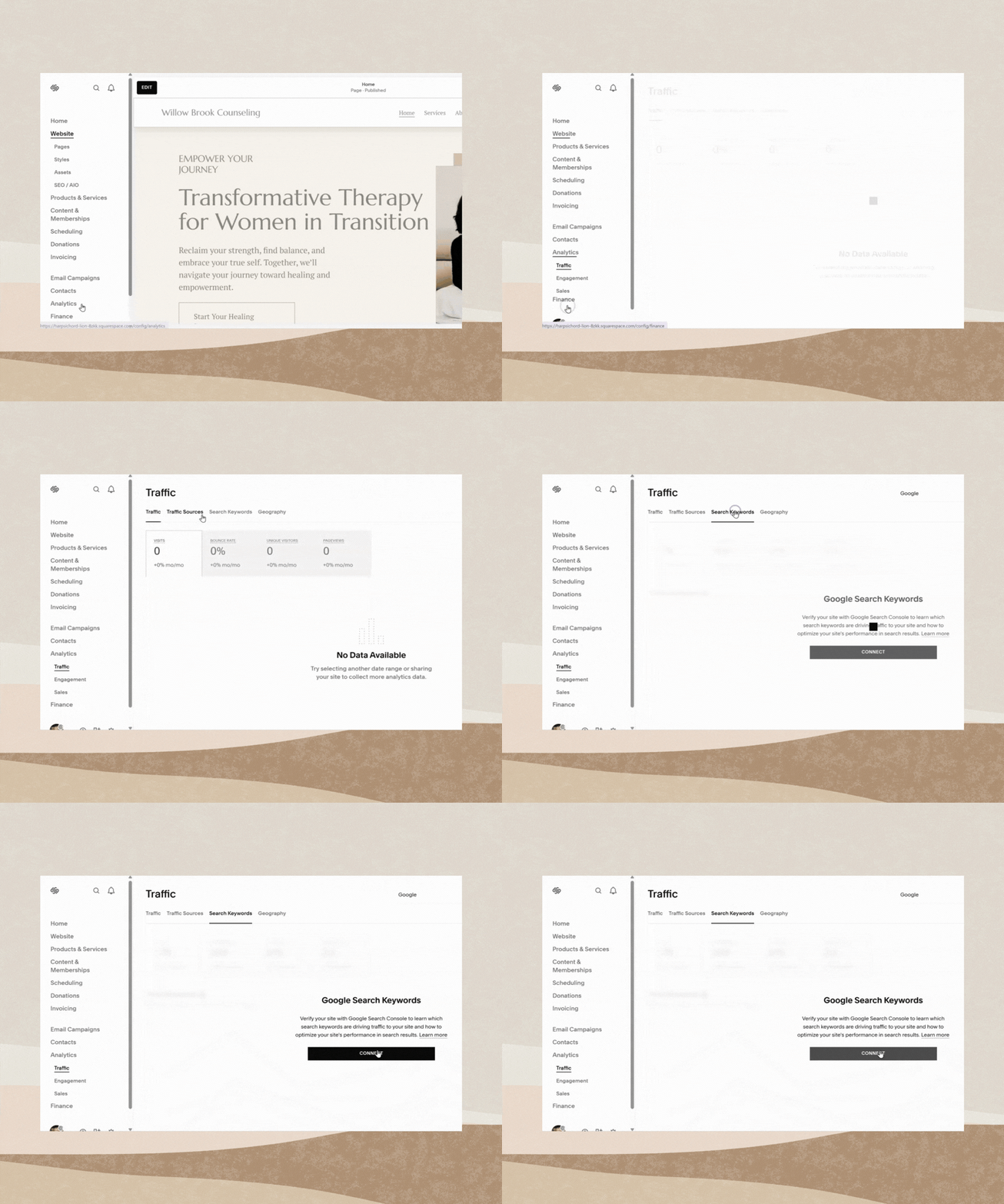
Log into your Squarespace account and in the Website menu on the left side of the screen, click Analytics.
Click on Search Keywords.
In the pop-up that appears, click Connect.
Sign into your Google account and review the permissions it requests. (If you have multiple Google accounts, make sure you select the correct one.)
Click Allow and give it up to 72 hours to start pulling in data.
Once it’s connected, you’ll be able to see which keywords your visitors are searching to find you. That data becomes one of the most valuable tools you have for refining your website’s content over time.
Getting Google to Notice Your New (or Updated) Website
Connecting Search Console is step one. But if you’ve just launched your site or made big updates, you can also proactively ask Google to come take a look.
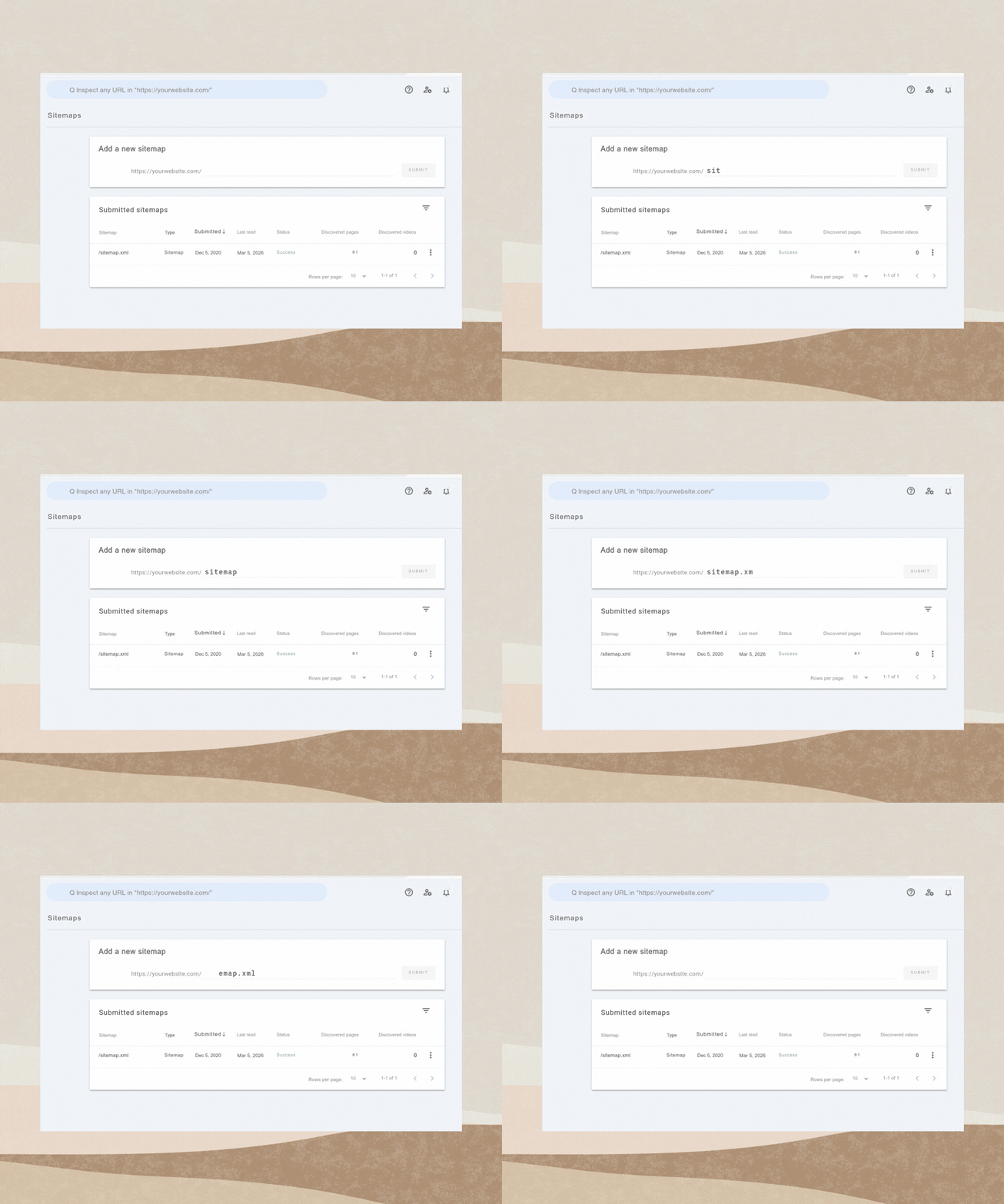
Submit Your Sitemap
Squarespace automatically generates a sitemap for your site, a kind of map that tells Google about every page on your website. Submitting it through Search Console is like handing Google a roadmap to your website.
Head to your Google Search Console dashboard, click Sitemaps in the left menu, and enter your sitemap URL (yourdomain.com/sitemap.xml). Click Submit — and you’re done.
If you see a “Couldn’t fetch” message, don’t panic. This often resolves itself within 24–48 hours as Google processes the request.
Request Indexing for Individual Pages
Just added a new blog post, a Services page, or an About refresh? You can ask Google to index specific pages using the URL Inspection tool inside Search Console. Just paste in the full URL and click Request Indexing. It’s that simple.
A Note About That Robots.txt Warning
If you see a robots.txt warning when connecting, this is completely normal. It just means certain back-end pages are intentionally kept away from Google (such as tag and category archive pages, account login pages, etc.) to protect your SEO. Nothing is broken.
Why Not Just Use Squarespace Analytics?
I get this question a lot from clients. While Squarespace Analytics is helpful, it’s only part of the picture.
Squarespace gives you a genuinely useful snapshot of how your site is performing: how many people visited, which pages they spent time on, where they came from, and how they moved through your site.
For therapists and wellness professionals, this kind of data can be really meaningful. You might notice that your “About” page gets a lot of love (people want to feel connected to you before they ever reach out), or that visitors are dropping off before they reach your contact form. That’s all valuable information for refining how your site supports your practice.
But here’s what Squarespace Analytics can’t tell you:
Which specific search terms someone typed into Google before landing on your site
Whether Google has actually indexed your pages (or if certain pages are being missed entirely)
How often your site shows up in search results, even when people don’t click through
Technical issues, like crawl errors or pages being accidentally blocked from search engines
Think of Squarespace Analytics as your inside view — it shows you what’s happening once someone is already on your site. Google Search Console is your outside view — it shows you how your site looks to Google and to the people searching for what you offer, before they ever arrive.
Together, they give you a much clearer, more complete picture of your website’s health, and help you make decisions that are grounded in real data, not guesswork. For a therapist building a sustainable private practice, that kind of clarity is really helpful.
What Happens After You Connect?
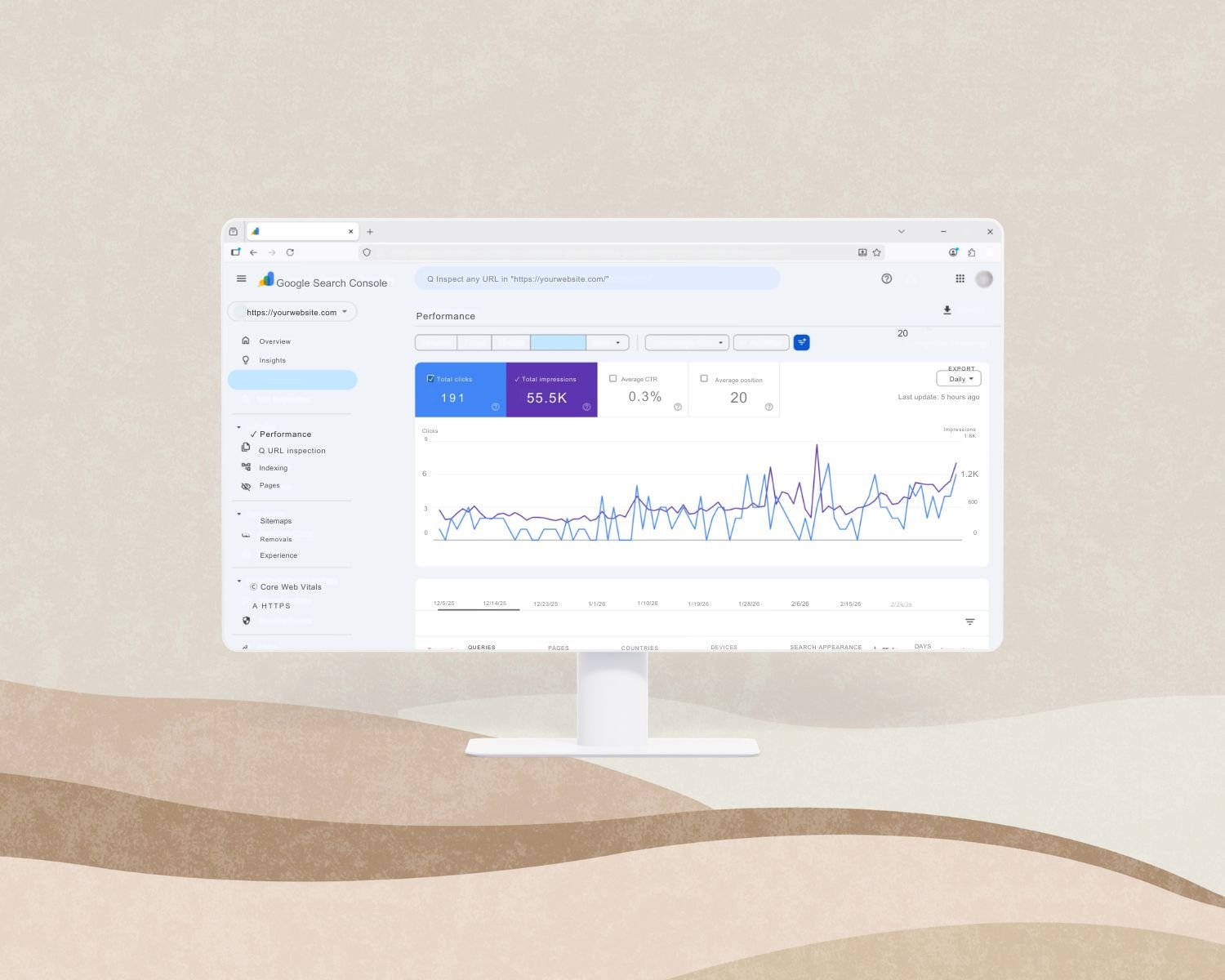
After the 72-hour data window, you can return to your Squarespace Analytics panel to see the keywords bringing people to your site. Here you can start to determine:
Are the right people (clients looking for your specialty) finding you?
Are your location-based keywords showing up? (e.g., “therapist in Philadelphia”)
Is your blog content supporting your visibility?
Over time, this data helps you write content that directly answers what your future clients are searching for. This is one of the most authentic, values-aligned ways to grow your practice online.
Ready to Get Your Website Working Harder for You?
If you’re feeling unsure about your site’s SEO, whether it’s set up for visibility, or whether it truly feels like you — I’d love to help.
Book a free discovery call and let’s talk about creating a website that feels inviting, clear, and true to your work.
Related Posts


You built your website to welcome the right clients — the ones searching for exactly the kind of support you offer. But here’s the thing: if Google doesn’t know your site exists, those potential clients may never find their way to you.